How-to
Switch site
If you belong to several sites, you move from one to another with the sites button, in the top bar. Lists then show the chosen site’s projects.
Switch site
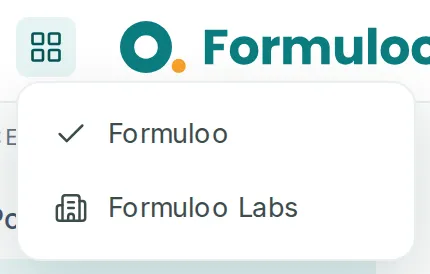
Link to the “Switch site” section- In the top bar, left of the logo, click the grid button, Switch site.
- In the list, click a site. The current site has a tick.
The Projects page opens, on the chosen site’s projects.
What the current site changes
Link to the “What the current site changes” section- Project lists, including Projects and the menus that offer a project, only show the current site’s projects.
- Opening a project from another site, from a link or a notification, switches to that site.
- A project you create is born in the current site.
- The bar’s search, advanced search, For you and notifications only show the current site’s content. A search that names a project searches it, whatever its site.
If you get stuck
Link to the “If you get stuck” section| What you see | What to do |
|---|---|
| The grid button does not appear. | You belong to no site, or to one only on a narrow screen. |
| A project you know is not in the list. | It belongs to another site. Switch site, or open it from its link. |
Good to know
Link to the “Good to know” section- A project belongs to a single site, and never changes site.
- Switching site changes neither your role in the projects nor your rights.
- An invitation to join a project of another site stays in the bell: you are not a member of that site yet.
Loading search…