How-to
Watch a ticket
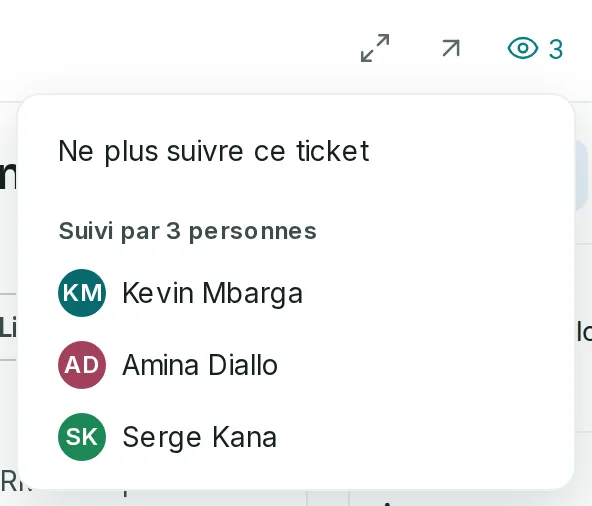
Watching a ticket sends you its notifications without being its assignee. The eye at the top of the ticket shows how many people watch it.
Watch the ticket
Link to the “Watch the ticket” section- Open the ticket.
- At the top right, click the eye. The number next to it says how many people watch the ticket.
- Click Start watching. Your name joins the Watched by list, and the number goes up by one.
To stop, open the eye again and click Stop watching.
Who watches automatically
Link to the “Who watches automatically” sectionThe reporter, the assignee, mentioned people and those who comment watch the ticket without doing anything. They can stop watching like anyone else.
The reporter and the assignee are still notified through their role even when they no longer watch: only their notification preferences silence them.
Make a member watch (Admin)
Link to the “Make a member watch (Admin)” section- Open the ticket’s eye.
- In Add a watcher, choose the person. They appear in the list at once.
- To remove someone, click the cross to the right of their name.
The list only offers active project members who do not watch the ticket yet.
If you get stuck
Link to the “If you get stuck” section| What you see | What to do |
|---|---|
| Neither Add a watcher nor crosses in the list. | These actions are reserved to project Admins, and absent from an archived project. |
| You watch the ticket but receive no email. | Check your Notification preferences, in your avatar’s menu: an event type turned off no longer emails you, even on a watched ticket. |
Good to know
Link to the “Good to know” section- You never get a notification for your own actions.
- Watching a ticket changes neither its version nor its history.
Loading search…