Reference
Project roles and permissions
Each member of a project has a role there: Admin, Member or Viewer. The role decides what the person can do in that project, and in that one only.
The three roles
Link to the “The three roles” section| Role | What it does |
|---|---|
| Admin | Sets up the project: its members and their roles, its statuses, its automations, its archiving and the import from Jira. An Admin can also do everything a Member can. |
| Member | Works in the project: creates and edits tickets (other people’s too, unless the Admin withdraws that right), comments, moves cards. Plans, manages sprints, deletes tickets or imports a CSV only if the Admin granted that right. |
| Viewer | Views the tickets, the board and the reports, without changing anything, and the backlog if the Admin opens it to them. |
The same person can be Admin of one project and Viewer of another.
As in a company-managed Jira project, the Admin grants rights member by member, in Project settings › Members: view the Backlog, plan (add a ticket to a sprint or remove it), manage sprints (create, start, close them), delete tickets, import a CSV, and edit other people’s tickets. The first five are closed by default; the last one is open by default, like “Edit Issues” in Jira, and the Admin can withdraw it. An Admin always has them. A Viewer can only receive the Backlog view. Tickets stay visible to everyone in the project’s ticket list: only the Backlog view is closed.
What each role allows
Link to the “What each role allows” section| Action | Admin | Member | Viewer |
|---|---|---|---|
| View tickets, the board and the reports | Yes | Yes | Yes |
| View the backlog | Yes | If the Admin opened it | If the Admin opened it |
| Grant or withdraw a right to a member | Yes | No | No |
| Search for tickets and save filters | Yes | Yes | Yes |
| Create a ticket | Yes | Yes | No |
| Edit a ticket and change its status | Yes | Yes for their own; other people’s, unless the Admin withdrew that right | No |
| Link a ticket to another | Yes | Yes | No |
| Delete a ticket | Yes | If the Admin granted it | No |
| Comment on a ticket | Yes | Yes | No |
| Edit or delete a comment | All | Their own | No |
| Attach a file to a ticket | Yes | Yes | No |
| Remove an attachment | All | Their own | No |
| Create, start and close a sprint | Yes | If the Admin granted it | No |
| Add a ticket to a sprint, or remove it | Yes | If the Admin granted it | No |
| Add or remove members, change their role | Yes | No | No |
| Set up the workflow statuses and the automations | Yes | No | No |
| Archive or unarchive the project | Yes | No | No |
| Import a Jira CSV export | Yes | If the Admin granted it | No |
When an action is not allowed, the button that starts it does not appear, or it stays greyed out and its tooltip gives the reason. If a Viewer still reaches the action, for example through a link, the product refuses and says so: “Your role, Viewer, lets you view this project, not change it.”
Someone else’s ticket, without the right to edit it
Link to the “Someone else’s ticket, without the right to edit it” sectionWhen the Admin withdraws Edit other people’s tickets from you, a ticket you neither reported nor are assigned to opens read-only:
- At the top of the ticket, a banner says why: “Editing a ticket you neither reported nor are assigned to: reserved for project administrators, and for whoever they grant the right.” It names the project’s Admins in brackets, so you know whom to ask.
- The summary, the description, the status and the fields on the right (assignee, priority, points, type, team, labels, parent, due date) can be read but not opened. So you cannot assign the ticket to yourself either.
- On the board, the ticket’s card stays in its column. You can still move it up or down, by mouse, keyboard or its menu, but no longer change its status: its menu no longer offers Move to, and its initials badge no longer changes the assignee.
- You can still comment on the ticket, link it to another, attach a file and add a subtask to it.
Your own tickets, the ones you created or that are assigned to you, stay editable. In the backlog, you can still order the ticket, but no longer change its epic; adding it to a sprint or removing it belongs to the right to plan, not to this one.
Where to see and change roles
Link to the “Where to see and change roles” sectionRoles are set in Project settings, Members & roles tab. Only the project’s Admins and Super Admins see Project settings in the sidebar. For the details, see Change a member’s role or remove them.
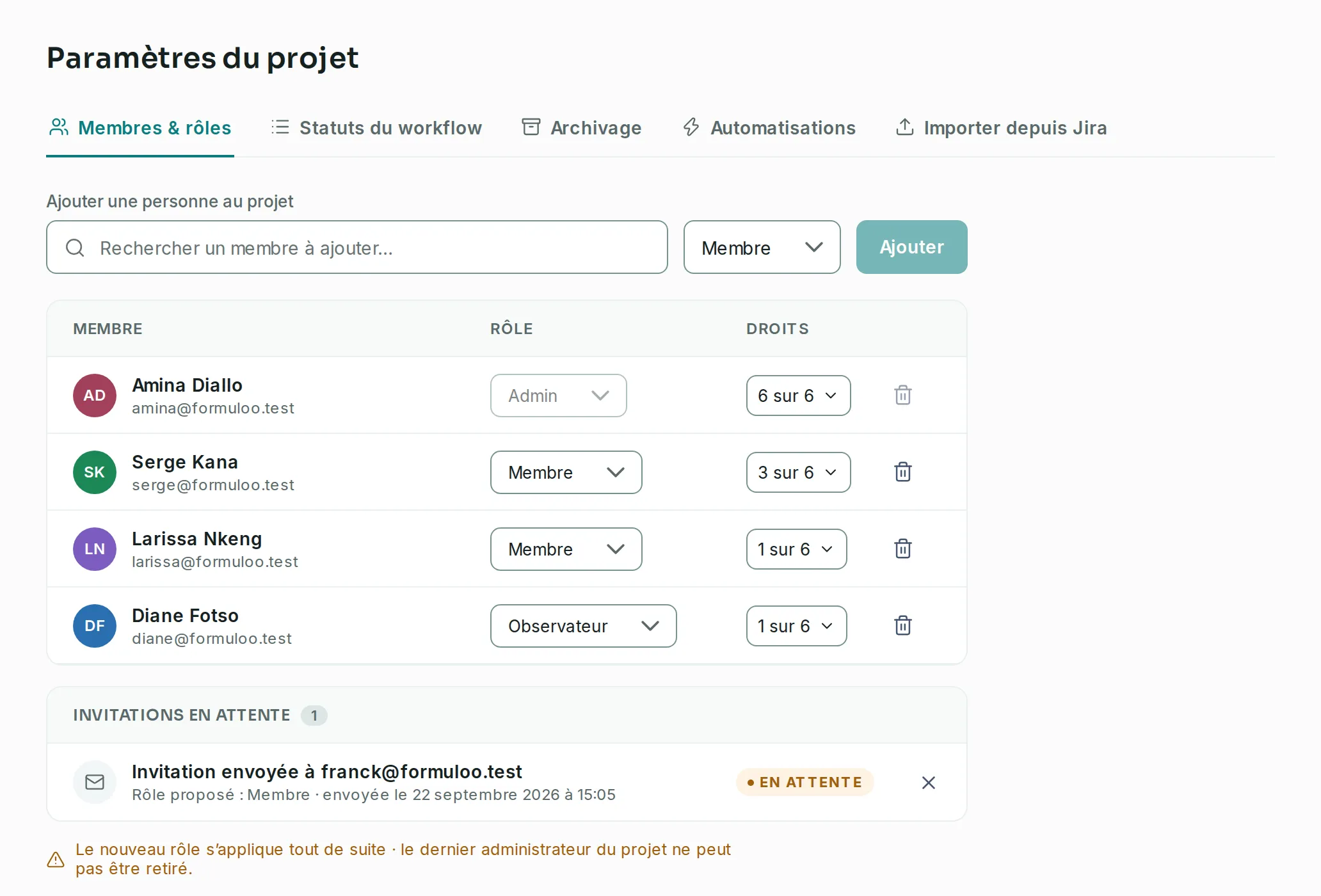
The projects list also gives your role in each project, in the My role column.
Good to know
Link to the “Good to know” section- A new role applies straight away, without the person having to sign in again.
- A project always keeps at least one Admin. The last one can neither be removed nor change their own role.
- The person who creates a project becomes its Admin. Anyone who is signed in can create a project.
- An invitation proposes a role, Member by default. The person gets it by accepting the invitation.
- An archived project is read-only for everyone, Admins and Super Admins included, until an Admin or a Super Admin unarchives it.
And the Super Admin?
Link to the “And the Super Admin?” sectionSuper Admin is the organisation’s role, above the project roles. A Super Admin manages accounts and sees every project, even those they are not a member of. In any project, they can also manage the members, the workflow statuses, the automations and the archiving. See the Administration guide.
A site also has its own roles, Administrator and Member. They decide who manages the site’s members, not what you can do in a project. See the Sites and teams guide.