How-to
View the project calendar
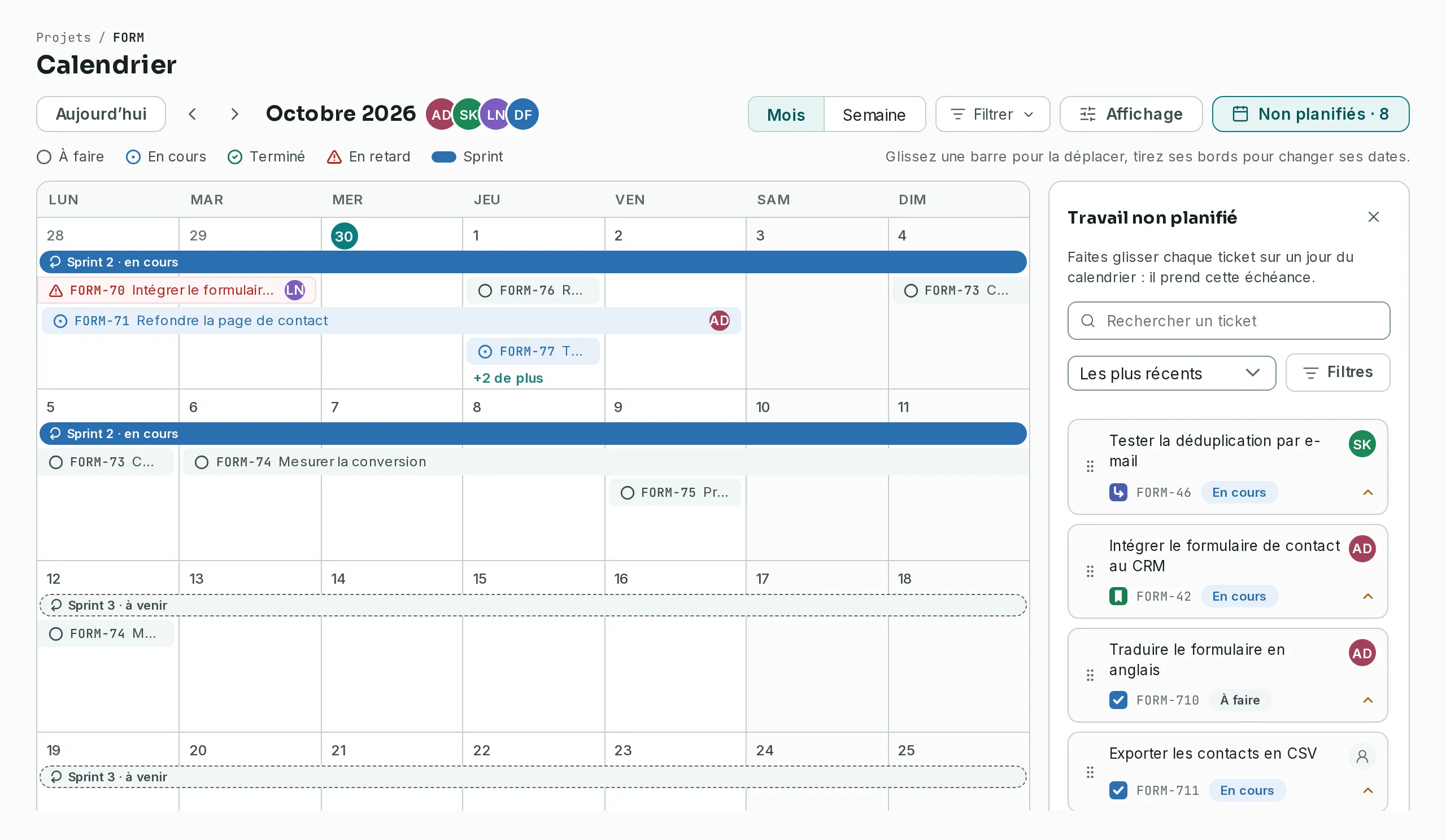
The calendar shows the project's tickets on the days of the month, from their start date to their due date, with the sprints. The Unscheduled work drawer lists those without a due date.
Open the calendar
Link to the “Open the calendar” sectionIn your project, click Calendar in the side bar. The calendar opens on the current month, and today is highlighted.
- The Previous month and Next month arrows change the month.
- Today brings you back to the present day, in the month as in the week.
Read a bar
Link to the “Read a bar” sectionA ticket is a bar from its Start date to its Due date. Without a start date, it sits on its due date. A bar that runs past a week goes on in the next row.
Each bar carries the ticket’s key and summary, with a status icon, and the assignee’s avatar at its end. In the month, on a bar too short, the avatar steps aside so the summary can be read:
| Icon and colour | What it says |
|---|---|
| Empty circle, grey | To do. |
| Dotted circle, blue | In progress, or in review. |
| Ticked circle, green | Done. |
| Triangle, red | Late: the due date has passed and the ticket is not done. |
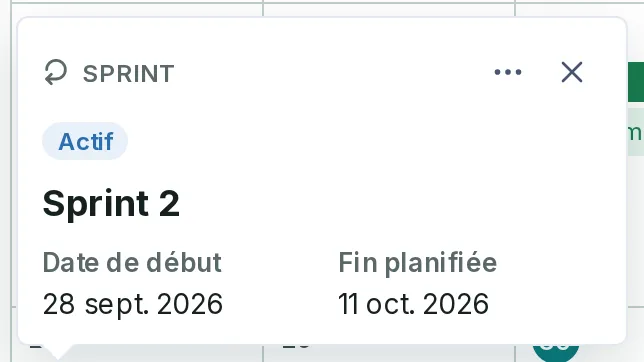
The project’s sprints show as bands above the bars, with their state: done, in progress or upcoming. Click a band: its card gives its state, its Start date and its Planned end. Its More actions button offers Edit sprint (its name, goal and dates) to whoever manages sprints, on a sprint not yet done, and See in the backlog. With the keyboard, in the month, the list of a day that holds tickets also offers its sprints; in the week, the sprint bands are reached with Tab.
A week shows three rows of bars. When a day holds more, its cell says how many it hides, for example +2 more. Click it: the list of all the day’s tickets opens, and each one opens its preview. If you can create, Create a task that day ends the list. A bar that does not fit in its week is hidden on all its days.
Set the view
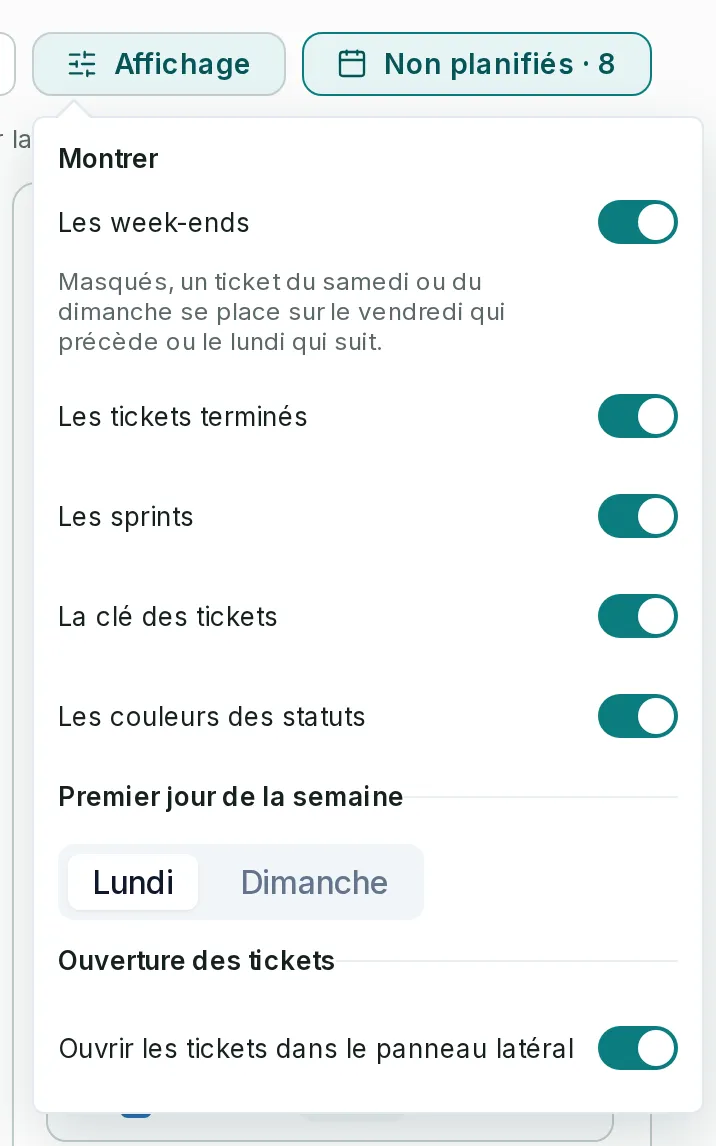
Link to the “Set the view” sectionThe View button opens six switches: Weekends, Done tickets, Sprints, Ticket keys, Status colours and Open tickets in the side panel. Turn one of the first four off to hide what it names. Without the status colours, the bars share one colour, except late ones, which stay red. The last one is described below, in “See a ticket”. First day of the week starts the weeks on Monday or Sunday: the grid, the week, the agenda and the keyboard follow it. On a phone, the agenda does not offer the weekends. Without the weekends, the grid shows Monday to Friday only, and no ticket disappears: one that starts on a Saturday or a Sunday starts on Monday, one that ends there stops on Friday, and one that sits entirely on the weekend is placed on Friday. Its real dates stay in the preview. Your settings are kept on this device.
Move through the calendar with the keyboard
Link to the “Move through the calendar with the keyboard” sectionIn the month, the Tab key enters the grid on a single day: the one you chose, otherwise today. Then:
| Key | What it does |
|---|---|
| Left and right arrows | The previous or next day. |
| Up and down arrows | The previous or next week. |
| Home, End | The first, the last day of the week. |
| Page Up, Page Down | The same day of the previous or next month. With Shift: of the year. |
| Enter or Space | The list of the day’s tickets. On a day without tickets, a new task. |
| Escape | Closes the list, the preview or the creation, and goes back to the day. |
A screen reader announces each day with its date, the running sprint, and each ticket with its status and dates.
Month or week
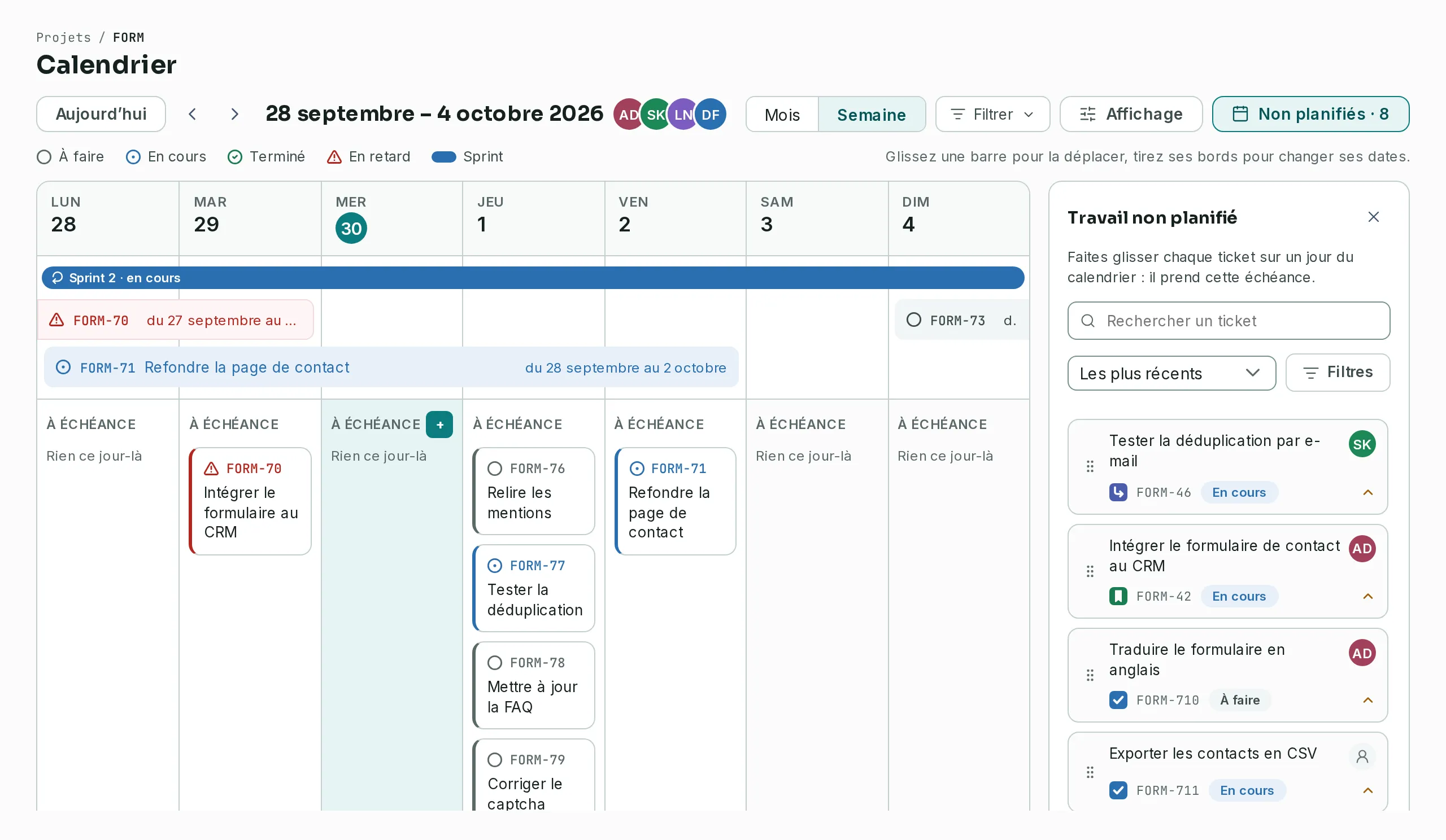
Link to the “Month or week” sectionThe Month and Week buttons, top right, switch the view. Your choice stays in the page address: a shared link opens in the same view.
The week shows as bands the tickets that span several days. Under each day, the Due column lists the tickets due that day. The Previous week and Next week arrows change the week. You move tickets there, stretch the bands by their edges, and create with a day’s +.
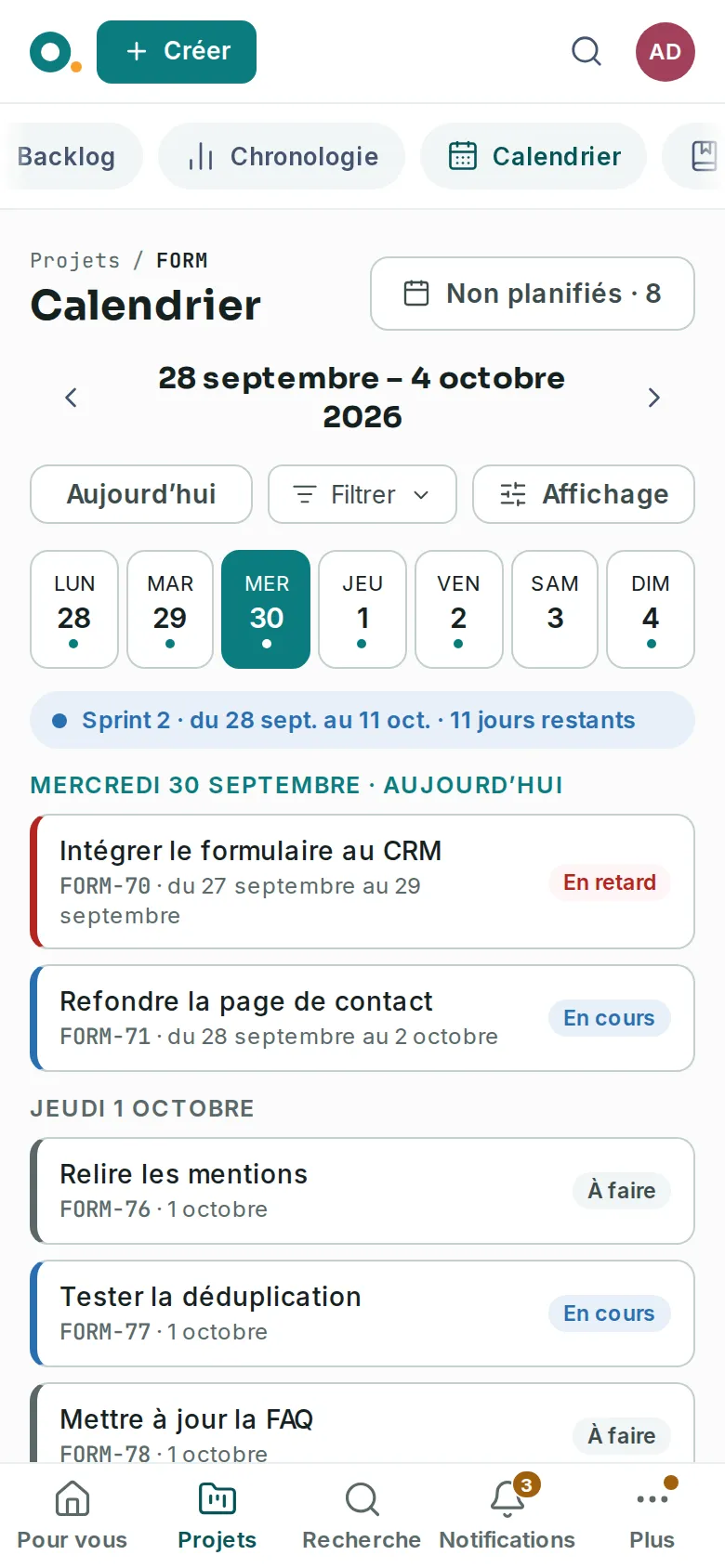
On a phone, the calendar becomes an agenda. At the top, the arrows change the week around the period, and a row holds Today, Filter and View. A strip shows the seven days of the week, with a dot under those that hold a ticket: swipe it sideways to change the week. The running sprint’s pill says how many days it has left. Tap a day: the list starts on that day, then gives, day after day, the tickets that start there. Today, late tickets come first.
Filter the calendar
Link to the “Filter the calendar” sectionThe Filter button offers the board’s filters: text, epic, assignee (“Unassigned” included), type and labels. They apply to the bars and to the Unscheduled work drawer. They stay in the page address, and follow you from one month or week to the next. On a wide screen, the team’s avatars, next to the period, filter faster: click a person to add them to the filter, again to remove them. A ticket created with a day’s + that the filters hide does not vanish silently: the calendar tells you.
See a ticket
Link to the “See a ticket” sectionClick a bar. A preview shows the key, the status, the summary, the dates, the epic if it has one, and the assignee. Open the ticket opens the whole ticket in the side panel, over the calendar, as on the board. What you change there shows in the calendar at once. To open it in its own page instead, turn off Open tickets in the side panel in View.
Change a ticket’s dates
Link to the “Change a ticket’s dates” section- With the mouse: drag a bar to shift both its dates by the same number of days. Pull its left or right edge to change the start date or the due date. While you drag, the bar sits on the day under the pointer. Release outside the calendar, or press Escape, to cancel.
- By touch: press and hold a bar, then drag it. A finger that moves at once scrolls the calendar.
- With the keyboard: open the ticket’s preview (with the keyboard, Enter on its day, then Enter on the ticket). The Start date and Due date fields change there. If the new due date comes before the start, the start follows it; if the new start comes after the due date, the due date follows it. A field’s cross clears the date: without a due date, the ticket goes back to the drawer.
Change a sprint’s end by stretching its bar
Link to the “Change a sprint’s end by stretching its bar” section- In the month or week view, hover over the right end of a sprint’s bar: a handle appears.
- Drag it to the right to lengthen the sprint, or to the left to shorten it. The bar follows the pointer.
- Release on the day you want. The sprint’s Planned end becomes that day; its name, goal and start do not change.
The handle only exists for the Admin or whoever manages sprints, on a dated sprint that is not closed. It sits on the last piece of the bar: show the week or month in which the sprint ends. If the change is refused, the bar goes back to its place and a message says so. By touch or with the keyboard, use the sprint’s card and Edit sprint.
Create a task on a day
Link to the “Create a task on a day” sectionClick the empty space of a day, or hover over it and click the + at the top right of its cell. Type the summary, then Create. The task is created with that day as its due date. For a task over several days, click and drag across the days: the first becomes its Start date, the last its Due date. With the keyboard, press Enter on a day without tickets, or choose Create a task that day in the day’s list. On a touch screen, this + is not offered: create with Create in the top bar.
Unscheduled work
Link to the “Unscheduled work” sectionThe Unscheduled work drawer, on the right (below the agenda on a phone), lists the project’s tickets without a due date, to do or in progress. The Search work items field filters the list by text. Below it, the order goes from newest to oldest by default, as in Jira: Oldest first, Recently updated or Highest priority change it. The Filters button keeps only the work items of some people (Unassigned included), some priorities or some statuses; it says how many filters are set, and Clear filters removes them. These filters narrow the calendar’s. Each card gives the summary, the assignee, the type, the key, the status and the priority. To plan a ticket, drag its card onto a day (by touch, after a press and hold): that day becomes its due date, and the ticket joins the calendar. With the keyboard, open the ticket and set its Due date.
After each date change, an announcement offers Undo: the previous dates come back, and a ticket just taken from the drawer goes back to it.
The “Unscheduled” button opens and closes the drawer. It shows how many of the project’s tickets wait for a due date, whatever the current search. The list shows the first 50: narrow the search to find the others.
If something blocks you
Link to the “If something blocks you” section| What you see | What to do |
|---|---|
| A ticket does not appear in the calendar. | If it has no due date, look for it in the Unscheduled work drawer, and set its Due date. If it has one, it may be hidden behind “+N more”: click it. A resolved ticket without a due date shows nowhere. |
| A bar does not start on the right day. | Its Start date is missing or wrong. Open the ticket to fix it. |
| A bar cannot be dragged. | By touch, press and hold before dragging. Otherwise, you do not have the right to edit this ticket, or the project is archived. |
| A move is refused. | Someone changed the ticket in the meantime. The bar takes back the saved dates: try again. |
| No sprint band. | The project’s sprints have no dates. They get them when the sprint starts. |
Good to know
Link to the “Good to know” section- On a phone, the agenda replaces the month grid. The Unscheduled work drawer opens from the “Unscheduled” button.
- The calendar shows tickets of every type, epics included.