How-to
Sign in
Signing in goes through a secure page shared by all of FormulooPM. You enter your email address and password there, or ask for a link if you have forgotten your password.
- Open FormulooPM in your browser, or a link to one of its pages. The Sign In page appears.
- In Username or email, enter your email address or your username.
- In Password, enter your password. The eye-shaped button at the end of the field shows it in plain text.
- Leave Remember me checked on your own computer. Uncheck it on a shared computer.
- Click Sign in.
You arrive on the page you asked for. Without a specific page, you arrive on For you.
Get back in without your password
Link to the “Get back in without your password” section- On the Sign In page, under the Password field, click Forgot Password?
- In Username or email, enter your account’s address.
- Click Send the link.
- In your mailbox, open the email “FormulooPM: reset your password”.
- Click Choose a new password. The link is valid for 15 minutes and can only be used once.
- On the Choose your password page, enter the new password in Password, then in Confirm your password.
- Click Save and continue. Then sign in with this new password.
The rules for the new password are in Choose a password.
Sign out
Link to the “Sign out” section- In the bar, click your avatar, on the right.
- Click Sign out.
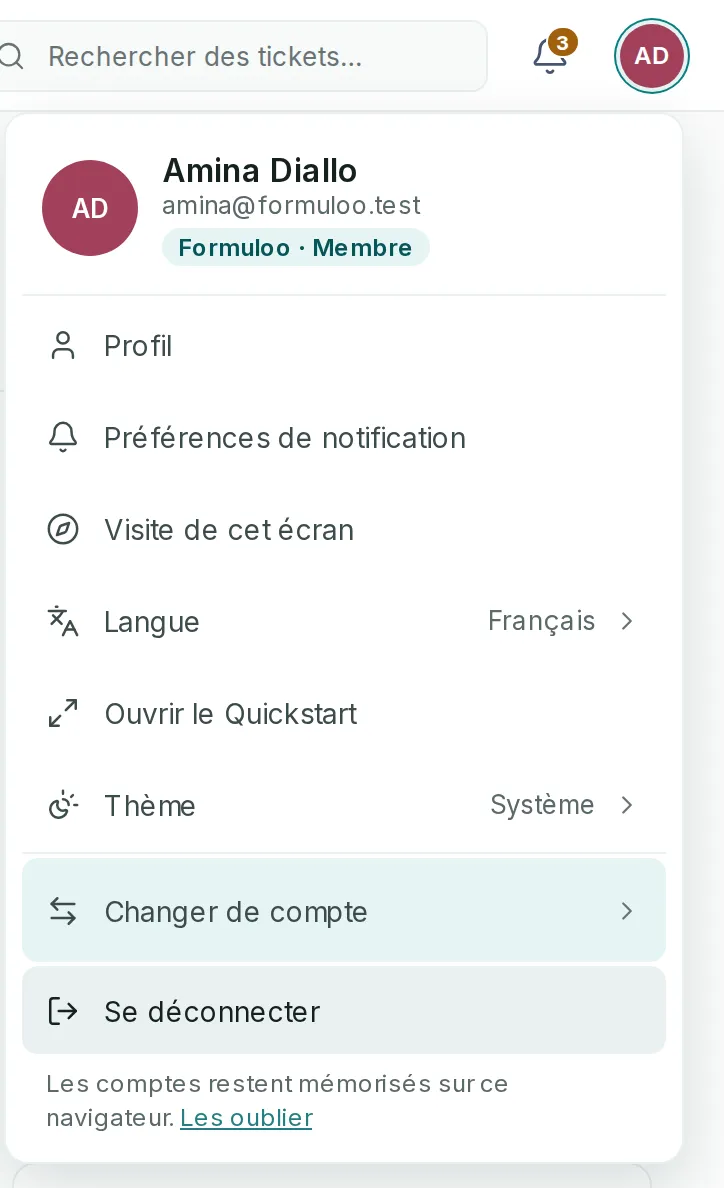
The session in this browser closes, and the Sign In page appears.
Switch account
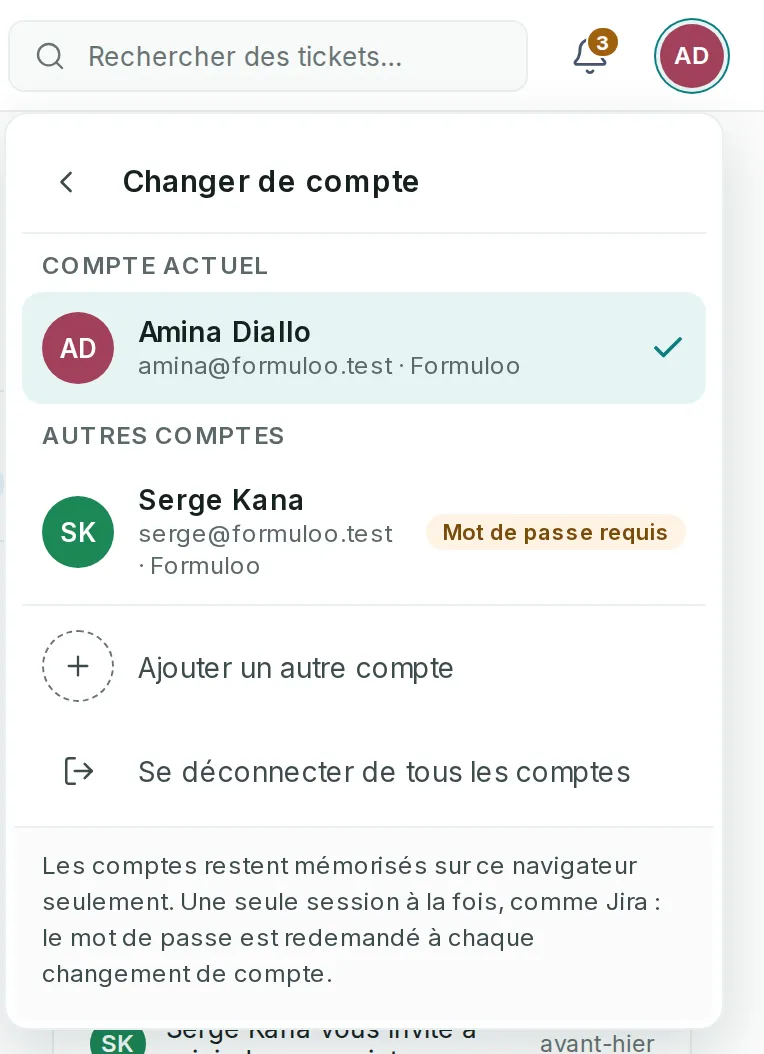
Link to the “Switch account” sectionA browser keeps only one session at a time. Switching account closes the current one, so the other account’s password is asked again.
-
In the bar, click your avatar, on the right.
-
Click Switch account. The menu gives way to the list of accounts: the Current account, ticked, then the Other accounts already signed in on this browser, each with its address, and its site when it is known. Password required reminds you that its password will be asked. The arrow at the top goes back to the menu.
-
Click the account you want. The Sign In page appears, with its address already filled in.
-
Enter its password, then click Sign in.
A “You are now on …” band, at the bottom of the screen, confirms the switch. Its Go back button returns to the previous account, whose password is then asked again.
- For an account missing from the list, click Add another account.
- Sign out of all accounts closes the session and empties the list.
- From the home page, Sign in shows Choose an account when this browser already knows accounts. Remove an account from this list deletes one. The chosen account’s password is asked, even if it is yours. If the Confirm your identity page asks for another account’s password, click Use another account: the chosen address is kept.
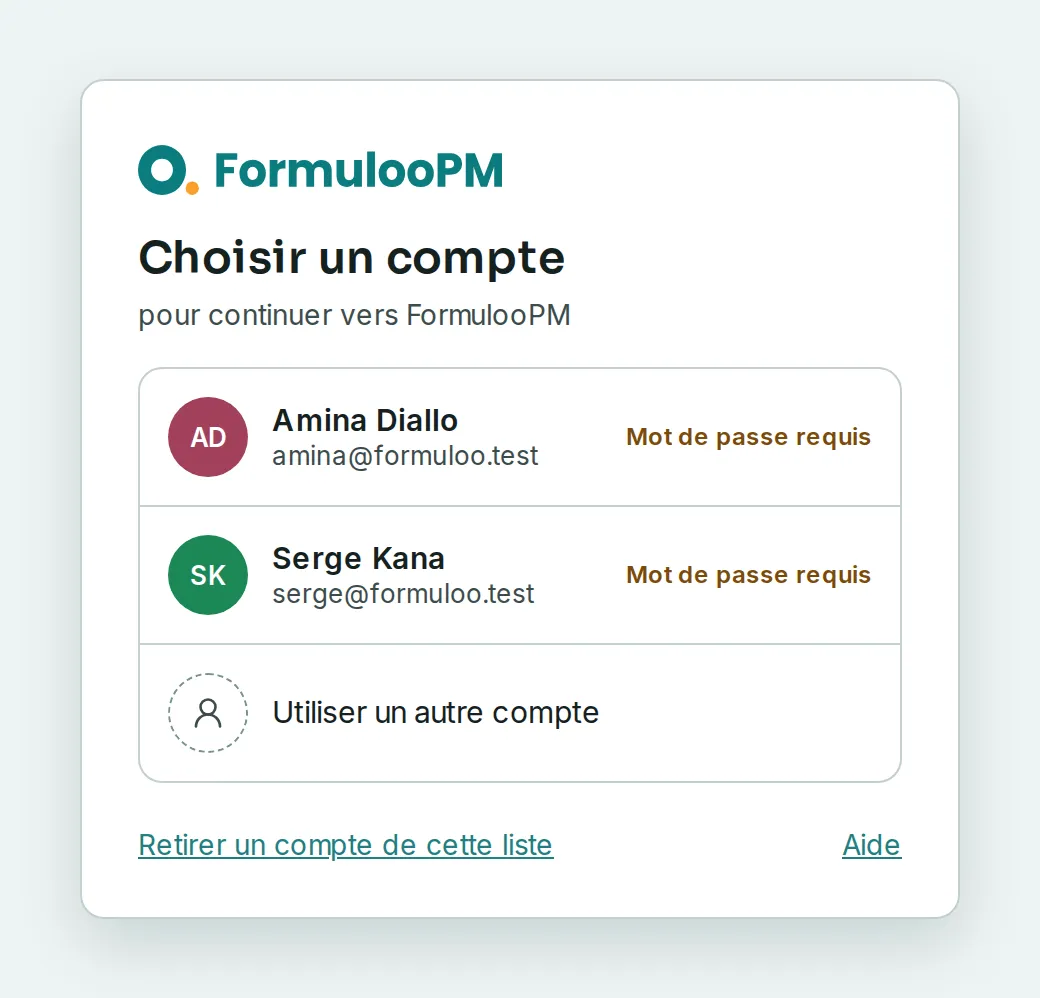
On a phone, the list opens as a sheet from the bottom of the screen, without the group titles.
The list stays on this browser only, even after Sign out. It keeps no password and no session, only each account’s name, address and site. On a shared computer, click Forget them, under Sign out: the list is emptied, and you stay signed in.
If you get stuck
Link to the “If you get stuck” section| What you see | What to do |
|---|---|
| “Incorrect email address or password.” | Check the address and the password, then try again. After five failures, signing in is suspended for at least a minute, and this message appears even with the right password. Wait, or use Forgot Password? |
| “Please enter your username or email address.” | The Username or email field is empty. Fill it in. |
| The Confirm your email address page appears instead of FormulooPM. | Your address is not confirmed yet. Open the email “FormulooPM: confirm your email address” and click Confirm my address. |
| No reset email arrives. | Look in your junk folder, and check the address you typed. If no account has this address, no email is sent, and the page does not say so. |
| “This link has expired.” | The link is more than 15 minutes old, or it has already been used. Start again from Forgot Password? |
| “We could not continue” | The email link has expired, has already been used, or was cut by your email software. Click Back to FormulooPM, then ask for a new link. |
| “This link is for another account” | The email link is for another account than the one signed in on this browser. Click Sign out and continue, then confirm signing out: the link resumes for the right account. |
| “This page stayed open too long, or you came back to it with the Back button.” | Click Pick up where I left off, or Start over. |
| A Confirm your identity page asks for your password. | For security, enter your password again, then click Sign in. To use another account, click Use another account. |
Good to know
Link to the “Good to know” section- With Remember me checked, this browser recognizes you for 30 days, even after you close it. You then need to sign in again.
- With it unchecked, this browser no longer recognizes you once it is closed. The session also closes when FormulooPM stays closed for 8 hours, and after 10 hours at the latest.
- On a shared computer, click Sign out before you leave. Closing the browser is not always enough: some browsers reopen tabs with their session.
- The suspension after several failures gets longer with each new series of errors, up to 15 minutes. It lifts by itself.
- Forgot Password? changes nothing until you have followed the link. Your current password stays valid until then.
- Choosing a new password closes all your open sessions, on all your devices.
- The sign-in and password pages follow the language chosen in FormulooPM. The password and address emails go out in the language of the page you request them from.