How-to
Comment and mention
A ticket’s comments are where you talk with the team. A mention, with @, alerts a project member directly.
Write a comment
Link to the “Write a comment” section- Open the ticket.
- Below the Links section, open the Comments tab, shown by default.
- Click Add a comment….
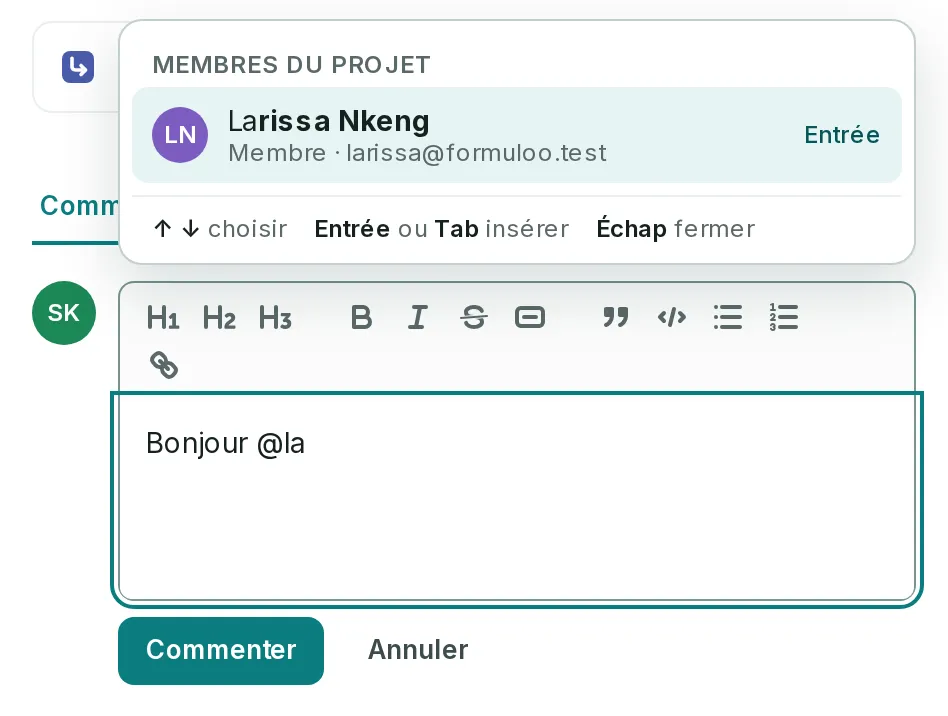
- Write your text. The toolbar above the box formats it: headings, bold, italic, strikethrough, code, quote, lists and links.
- Click Comment. The comment appears at the top of the thread, where the most recent one is always first.
Mention a member
Link to the “Mention a member” section- In the comment text, type @ followed by the start of a first name or surname.
- In the list that opens, click the person. With the keyboard, choose them with ↑ and ↓, then Enter. Their name appears as a pill, in one block.
- Click Comment. The person receives a notification, for example “Amina Diallo mentioned you on FORM-42”.
The list offers the project’s members, five at most, with a word of their name starting with the letters you typed. Accents and capital letters do not matter.
Once the comment is published, a message above the thread tells who the notification went to, for example “Larissa Nkeng has been notified, and now watches this ticket.” In the text, the mention becomes a pill with the person’s initials, then their name. Point at it, or click it, to open their card: their role in the project, their address, then See their tickets, which opens the board filtered on them, and Copy the address. Esc closes the card.
Edit or delete a comment
Link to the “Edit or delete a comment” section- Below your comment, click Edit.
- Correct the text.
- Click Save. The (edited) mark appears next to the date.
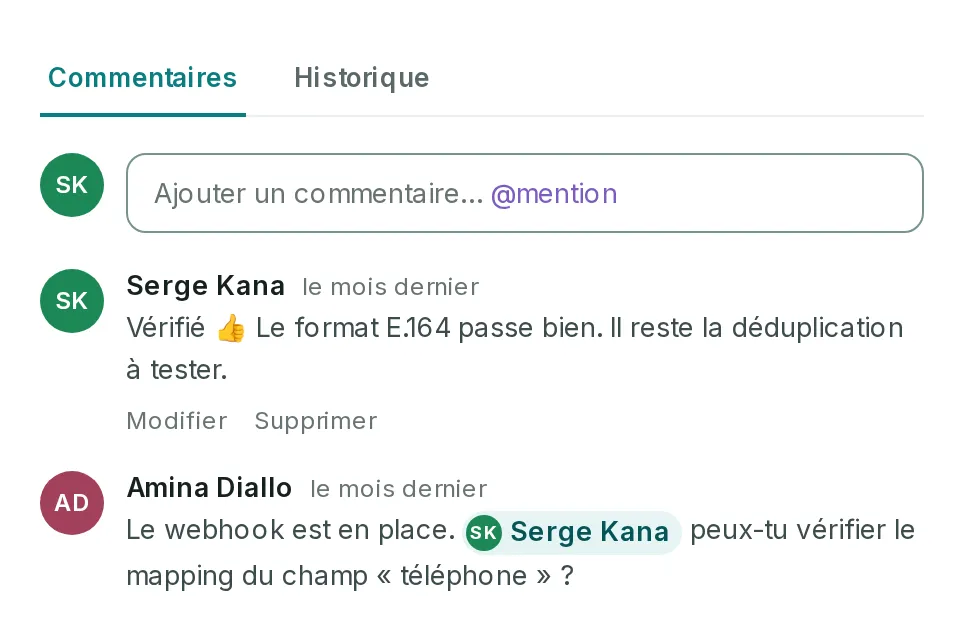
To remove a comment, click Delete below it. It disappears at once, without asking for confirmation, and cannot be recovered.
You edit and delete your own comments. A project Admin can edit and delete every comment.
If you get stuck
Link to the “If you get stuck” section| What you see | What to do |
|---|---|
| After Comment, your text disappears without being added to the thread. | The service refused the comment or did not answer, and the screen does not say so. The text is lost: write it again without an HTML tag such as <b>, without an image inserted in Markdown, and without a link other than http, https or mailto. Also check that the project is not archived. |
| “Discard this comment?” | You pressed Esc or clicked Cancel with text still in the box. Keep writing keeps it, Discard deletes it. |
| The person does not appear in the list after the @. | Type more letters: the list shows five names at most. If they still do not appear, they are not a member of the project. |
| “This ticket’s comments could not be loaded.” | Click Retry. |
| The Add a comment… box does not appear. | You are a Viewer in this project, or the project is archived. |
| Edit and Delete do not appear below a comment. | The comment is not yours, and only a project Admin touches other people’s comments. |
Good to know
Link to the “Good to know” section- A mentioned person receives a notification in the app, and also an email, unless they turned off the email for I am mentioned (@) in Notification preferences. Like all the product’s emails, it is in French: its subject is “Vous avez été mentionné dans FORM-42” (You were mentioned in FORM-42).
- The ticket’s reporter, its assignee and the people following it receive “… commented on …” in the app. An email goes out too, unless you have turned off New comment on my tickets. Commenting on a ticket, or being mentioned in it, makes you follow it.
- Nobody is notified of their own comment. A mentioned person does not also receive the comment notification.
- Editing a comment does not alert again the people already mentioned. A person added while editing is alerted.
- A mention chosen from the list is one block: the cursor cannot enter it, and one press of Backspace removes it whole.
- The comment shows formatted, like the ticket’s description. A comment written earlier shows formatted too: text between asterisks may turn italic.
- Pasting or dropping a file into the comment box attaches it to the ticket, and inserts a reference in the text that opens it with a click. In the typing area, this reference is one block: an image already shows, another file shows its name. An image attached this way shows as a thumbnail in the comment. Text copied from Word or Excel pastes as text, with no attachment.
- The thread shows the 50 most recent comments.