How-to
Export or print tickets
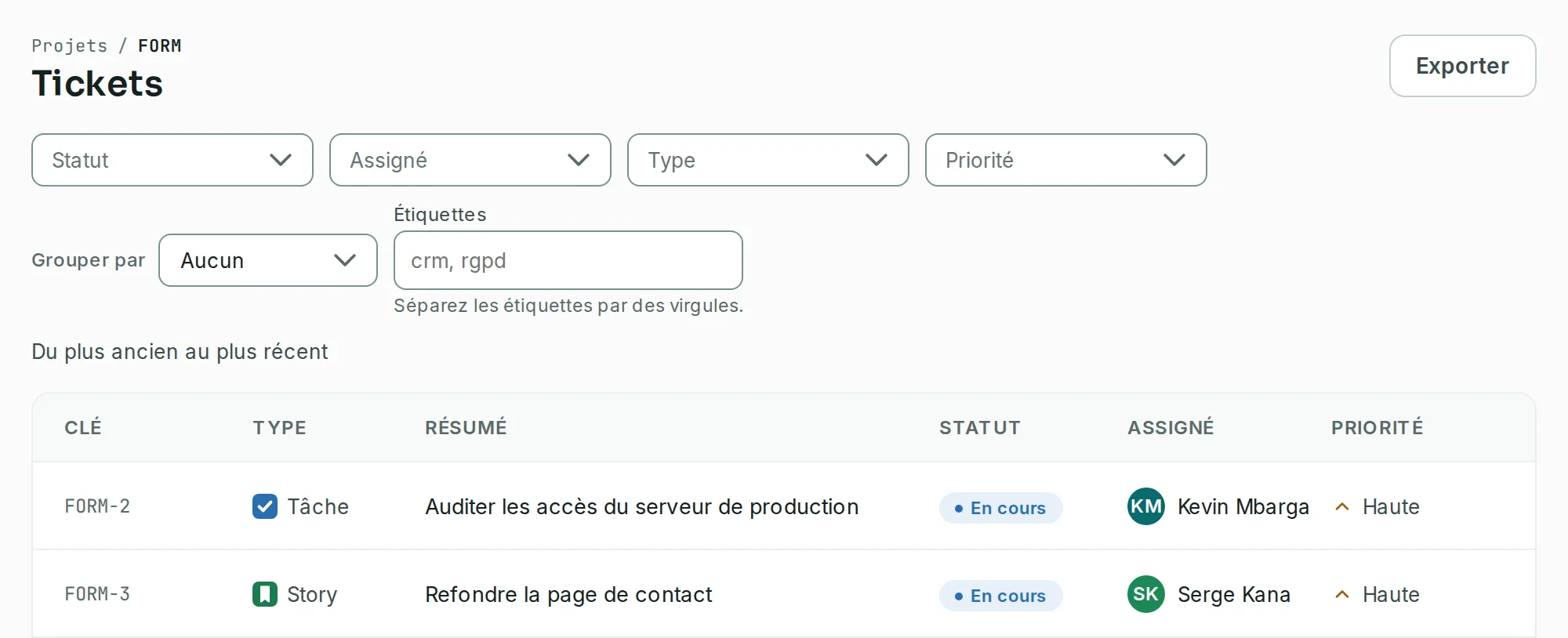
The Export button downloads every ticket that meets your criteria, including those the page does not show yet: as a CSV with all fields as in Jira, the main fields or the shown fields, as Word or as XML. It also prints the list. It is available in advanced search and in a project’s Tickets, Backlog and Board screens. A single issue exports as Word, XML or Excel, and prints.
Export from advanced search
Link to the “Export from advanced search” section- Open advanced search from the Filters tab in the top bar.
- Set at least one criterion. The Export button appears in the results header.
- Click Export, then choose All fields, Current fields, Main fields, Word, XML or Print. While the file is being prepared, the button shows Exporting….
- The file downloads, and a message gives its name, for example “12 tickets exported to FORM-recherche-2026-10-01.csv”.
Export from a project
Link to the “Export from a project” section- In your project, open Issues, Backlog or Board in the sidebar. Issues opens the Tickets screen.
- Set the screen’s filters if you want to narrow the list.
- Click Export, then choose a format. In the backlog, the button is in the header of the backlog list.
The menu’s choices:
| Choice | What you get |
|---|---|
| All fields | A CSV with the columns of Jira’s All fields export. |
| Current fields | A CSV with the columns the list shows, in their order. Only in Tickets and advanced search. |
| Main fields | A sixteen-column CSV, described below. |
| Word | A Word document: one section per ticket, its key and summary as a heading, then its filled fields. |
| XML | The XML file of a Jira export: one item per ticket. |
| Your browser’s print window, on the list alone. Only in Tickets and advanced search, when the list is not empty. |
Each screen exports its own list:
| Screen | What the file contains |
|---|---|
| Tickets | The project’s tickets that meet the Status, Assignee, Type, Priority and Labels filters. |
| Backlog | The backlog tickets that meet its filters, without those in sprints. |
| Board | The tickets the board shows with its filters, which means those of the current sprint when there is one. |
Export one issue
Link to the “Export one issue” section- Open the issue, in the side panel or full page.
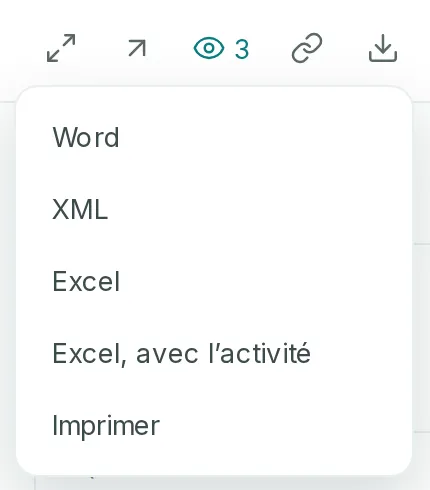
- In the issue header, click the Export or print icon.
- Choose a format, or Print. The file is named after the issue key, for example “FORM-42.xlsx”.
| Choice | What you get |
|---|---|
| Word | A Word document with the issue key and summary as title, then its filled fields. |
| XML | The XML file of a Jira export, with a single item. |
| Excel | A workbook with an Issue fields sheet, holding the All fields columns. |
| Excel, with activity | The same workbook, plus an Issue activity sheet: every change in the history, with its author and date. |
| Your browser’s print window, on the issue alone, without the bar or the commands. |
The activity holds the issue’s whole history, not only what the History tab shows. Comments are not included.
Open the file
Link to the “Open the file” section- Open the downloaded file in your spreadsheet.
- If all the values sit in a single column, import the file again, choosing the comma as separator and UTF-8 as encoding.
The file has a header row, then one row per ticket. Its columns depend on your choice.
All fields
Link to the “All fields” sectionThe columns are those of Jira’s All fields export, in the same order and under the same names. Only those FormulooPM fills remain: the ticket and its id, the project (key, name, type, lead and description), people with their id, dates, labels, the description, watchers, every sprint of the ticket, rank, start date, story points, team, status category, and the parent with its key and summary. Jira columns that FormulooPM never fills, such as votes or time spent, are not in the file.
As in Jira, a field that can hold several values has one column per value. A ticket with three labels fills three Labels columns. If no ticket has a label, the column does not appear.
Main fields
Link to the “Main fields” sectionSixteen columns: Key, Type, Summary, Description, Status, Priority, Labels, Assignee, Reporter, Created, Updated, Due date, Estimate, Sprint, Parent and Resolved. People, statuses and sprints are written by their name.
If you get stuck
Link to the “If you get stuck” section| What you see | What to do |
|---|---|
| “The export stops at 10000 rows, this product’s ceiling: the list holds more. Narrow the filters, then export again to get the rest.” | The file has arrived, but it is incomplete. Export in several goes, for example project by project or by creation period. |
| “The CSV export failed.” | Click Retry in the message. |
| The Export button does not appear in advanced search. | No criterion is set. Set at least one. |
| All the values are in the first column. | The file’s separator is the comma. Tell your spreadsheet when you open the file. |
| The Parent column holds a long identifier instead of a key. | The ticket’s parent is not in the file, because your criteria left it out. Widen the criteria to bring it in. In an All fields export, the Parent key column is then empty. |
Good to know
Link to the “Good to know” section- The file name combines the project key, the list and the day: FORM-tickets-2026-10-01.csv, FORM-backlog-2026-10-01.csv, FORM-tableau-2026-10-01.csv. A search across several projects gives projet-recherche-2026-10-01.csv. These names are the same in every language.
- Two exports of the same list on the same day have the same name.
- The creation, update and resolution dates use your computer’s time, in YYYY-MM-DD HH:MM format. The due date is in YYYY-MM-DD format.
- A ticket’s labels are separated by a semicolon within their cell. The description is plain text, without formatting.
- A file exported from an empty list only contains the header row.
- In a CSV, a value that starts with =, +, - or @, and is not a number, is preceded by an apostrophe, so that a spreadsheet does not run it as a formula. Imported back into FormulooPM, it gets its shape back.