How-to
Date a ticket
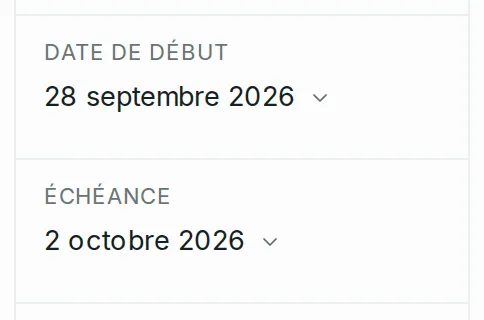
A ticket has a start date and a due date, like Jira's Start date and Due date. Both are set in the ticket's side column.
Set or change a date
Link to the “Set or change a date” section- Open the ticket.
- In the right-hand column, click Start date or Due date. On a phone, these fields are under Details.
- Type the date as YYYY-MM-DD, or pick it with the calendar icon.
- Leave the field. The date is saved.
Esc closes the field without changing anything.
Remove a date
Link to the “Remove a date” sectionOpen the field, then click the cross. The field shows None.
Removing the due date keeps the start date.
If something blocks you
Link to the “If something blocks you” section| What you see | What to do |
|---|---|
| “Your change was not saved. The input was refused: check the fields.” | The start date fell after the due date, or the due date before the start date. Move the Due date later first, or the Start date earlier first. |
| A typed date is not saved, and the field keeps the old one. | It was not complete. Type it as YYYY-MM-DD, or pick it in the calendar. |
| The fields do not open. | You are an Observer in this project, or the project is archived. |
Good to know
Link to the “Good to know” section- Both dates are days, with no time.
- The start date and the due date can fall on the same day.
- Each change is written to the ticket’s history, as “set the start date to …” or “removed the start date”.
Loading search…